
Obsidian Loves ❤️ Typst - thanks to one powerful plugin
I really like Markdown. It’s the best way for me to write something down without worrying about formatting. For example, writing a list in Markdown feels natural to me. Writing in Typst feels like writing in Markdown because most of the Markdown syntax is supported in Typst. However, Typst can also do much more. In fact, it is conceptualized as a replacement for LaTeX, so finding things you cannot do with it is quite difficult.
I also like using it in Obsidian 😉:
I’ve been a Typst user since before v0.1.0, and what kept me using it was that I became more capable of doing things with it in just a few days than I was with LaTeX after years of using it (and I’m not a novice with LaTeX, either).
For my daily note-taking, however, I prefer Markdown because its simplicity forces me to just take notes without worrying about formatting.
However, sometimes a note would benefit from better formatting or advanced features, such as an inline calendar 😆. However, Obsidian does not natively support Typst, so I searched for a way to integrate Typst via plugins.
Required Plugins
We need two plugins to get Typst working in Obsidian:
- VSCode editor (
obsidian://show-plugin?id=vscode-editor) - Shell commands (
obsidian://show-plugin?id=obsidian-shellcommands)
Setting up the VSCode editor plugin
The VSCode editor plugin allows us to edit Typst files in a Monaco Editor,
which is sufficient for making small changes to Typst files.
In the settings, we need to set the File extensions to typ and restart Obsidian.
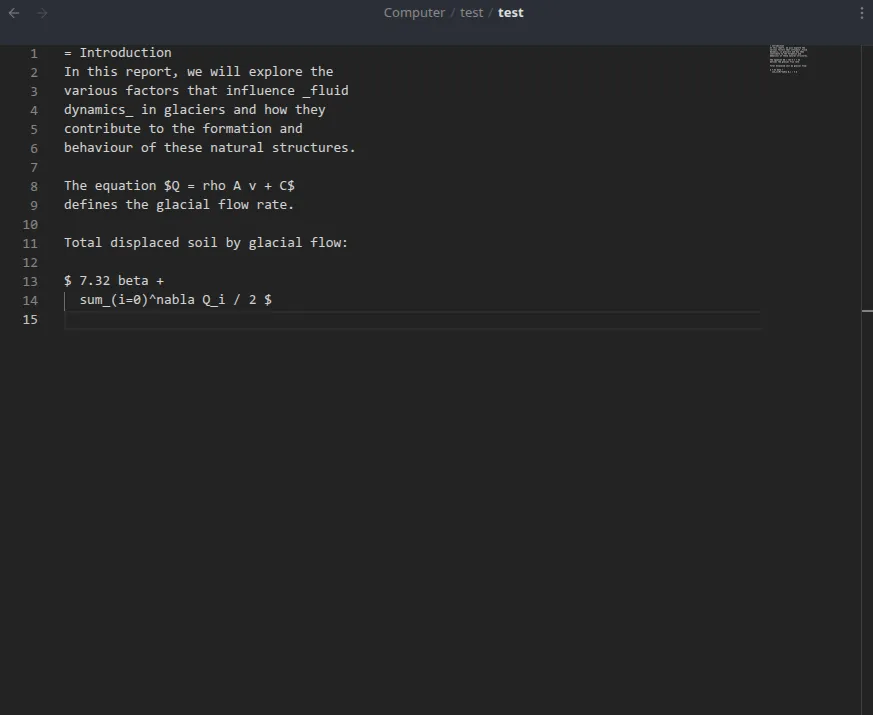 Unfortunately, there is no syntax highlighting for Typst files, but this is good enough for small changes.
Add the Compile Command using the Shell commands plugin
The Shell commands plugin allows us to run shell commands from Obsidian. We can run them based on events, such as a click or a hotkey.
Settings -> Shell Commands -> New Shell Command
if [ "{{file_extension:no-dot}}" == "typ" ]; then tinymist compile {{file_path:absolute}}; fi(You also need to have the tinymist compiler installed and in your PATH, for this to work)
Then open the settings, for the command we just created:
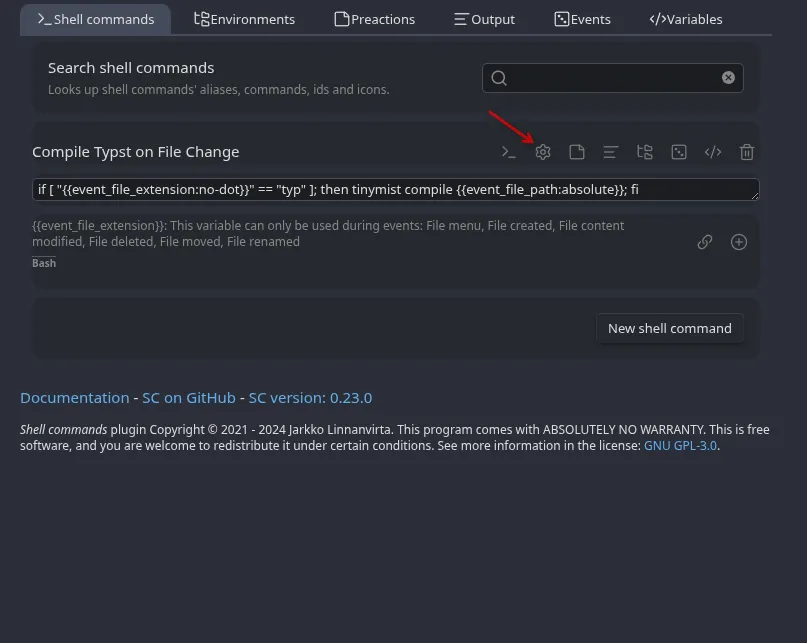 Enter some alias, like “Compile Typst document on CTRL+S”
If Obsidian does not save fast enough just add a small delay to the command:
Enter some alias, like “Compile Typst document on CTRL+S”
If Obsidian does not save fast enough just add a small delay to the command:
if [ "{{file_extension:no-dot}}" == "typ" ]; then sleep 1.5; tinymist compile {{file_path:absolute}}; fiYou can now add a hotkey to the command. I chose 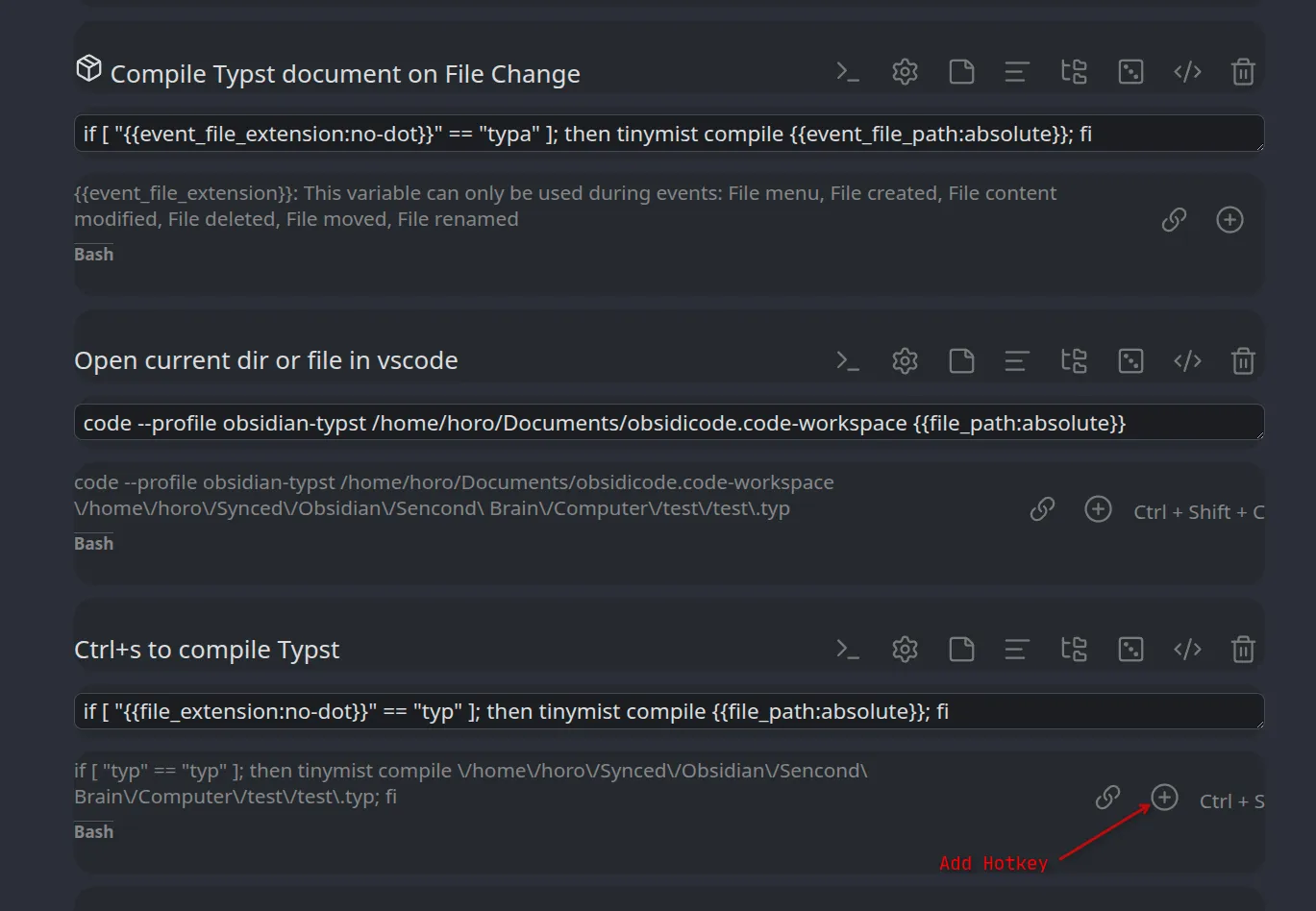
I also added a command that opens the Obsidian vault in VSCode.
code --profile obsidian-typst /home/horo/Documents/obsidicode.code-workspace && code --reuse-window "{{folder_path:absolute}}"This opens VSCode with a specific profile (so I can have different settings and extensions for it) and opens the entire vault as a workspace. Then, in this workspace, it opens the folder of the file I am currently editing, also allowing me to easily navigate to other files in the vault. In my case, this is done with the keyboard shortcut Foam plugin (https://marketplace.visualstudio.com/items?itemName=foam.foam-vscode), which makes VSCode understand the links in Obsidian and more.
This would be the code for an event driven auto compile version. However, while you are writing the file, it will compile if there is invalid syntax. For this reason, I prefer the Ctrl+S version to control when compilation happens.
if [ "{{event_file_extension:no-dot}}" == "typ" ]; then tinymist compile {{event_file_path:absolute}}; fiTo make this work, go to the command settings and enable the events, specifically the File content modified event.
Cheers
~Horo

Hi, I'm HoroTW. I'm a software engineer and data scientist student based in Germany. You can see some of my work on GitHub or Codeberg, watch my videos on YouTube, read some more about me on my website.