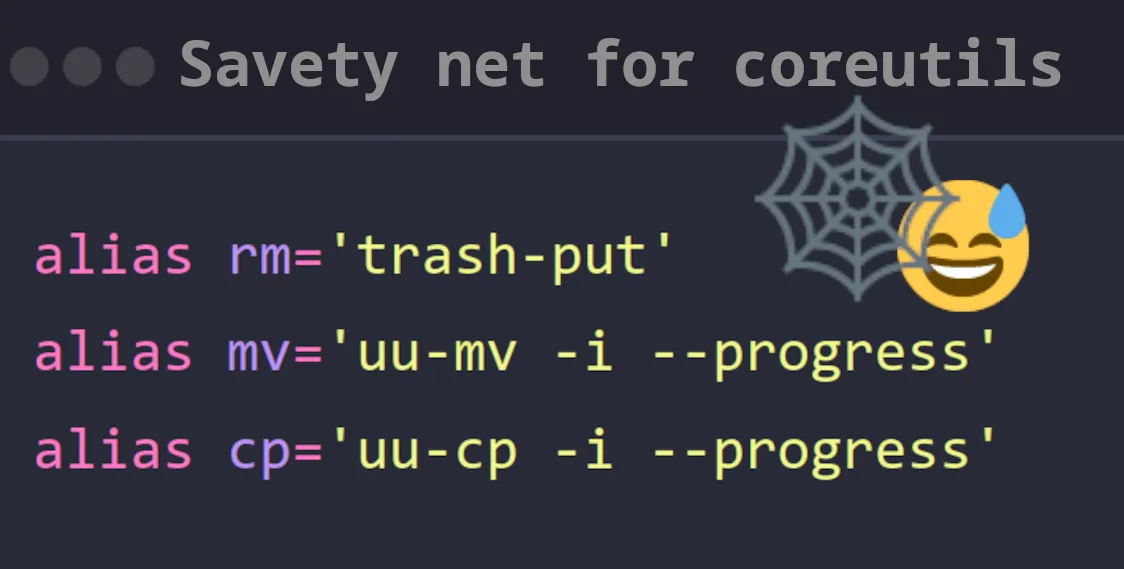
Add some safety net to some coreutils (mv, rm, cp)
Just a friendly reminder that some of our core utilities can be dangerous if you’re not careful. They do exactly what we tell them to do. If we mess up, we need to blame ourselves.
I don’t like to blame myself, so I like to have some safety nets in place (besides regular backups of course!!).
In particular, the commands rm, mv, and cp can easily cause damage if used incorrectly.
As most of you know, rm will not ask for confirmation when deleting a file, and rm -r will not ask for confirmation when deleting a directory.
The same goes for mv and cp. If the destination file already exists, it will overwrite it without asking for confirmation.
However, you can make them ask for confirmation by adding the -i (interactive) flag to the command.
We can add an alias to our shell configuration file (e.g., ~/.bashrc or ~/.zshrc) to always prompt for confirmation.
alias rm='rm -i'alias mv='mv -i'alias cp='cp -i'While we’re at it, let’s also add a progress bar. For that, we will use uutils-coreutils, which is a drop-in reimplementation of coreutils in Rust.
From their GitHub page:
uutils coreutils aims to be a drop-in replacement for the GNU utils. Differences with GNU are treated as bugs.
So they should work like the GNU ones, but they have extra features, like a progress bar.
alias rm='uu-rm -i --progress'alias mv='uu-mv -i --progress'alias cp='uu-cp -i --progress'One could be done now. Personally, I like the confirmation prompt on mv and cp because I rarely try to move or copy a file over an existing one. However, rm is a different story.
The confirmation prompt for rm is just annoying. I always intend to delete a file or folder when I try to delete it — duh — so the question is superfluous.
A better safety net for rm is the trash command. By default, it moves the file to the trash instead of deleting it permanently.
The aliases would look like this:
alias rm='trash-put'alias mv='uu-mv -i --progress'alias cp='uu-cp -i --progress'If you want to call the real rm command you can just prepend it with a backslash like this: \rm somefile and it will bypass the alias and call the real rm command.
On a side note, there is also the shred command, which is part of the coreutils package. It is useful when you want to “securely” delete a file by overwriting it with random data before deleting it.
Trash does “not really” (feels like best effort) have the same interface as rm it has some compatibility but it is not a true drop in replacement…
But if you feel like you would like to have also all scripts and everything use trash instead of rm you could just create a symlink to trash-put called rm and put it in your PATH before the real rm command.
The trash command does not have the same interface as the rm command. It has some compatibility, but it is not a true drop-in replacement. But for the most cases it should just work fine.
If you still would like all your scripts to use trash instead of rm, you can create a symlink to trash-put called rm and put it in your PATH before the real rm command.
There are still “non interactive” “non login” shells like cron jobs and systemd services. They will still use the real rm command - which is totally fine… but if you really want to force them all to use trash we will just have to replace the rm file in /bin and /usr/bin with a symlink to trash-put.
There are still “non-interactive” and “non-login” shells, such as cron jobs and systemd services. They will use the real rm command, which is fine. But if you want to force them also to use trash, we will have to replace the rm file in /bin and /usr/bin with a symlink to trash-put.
This also needs to be done each time the rm file is updated or replaced by the package manager.
I wrote a small script that installs a pacman hook in /etc/pacman.d/hooks that triggers when rm is updated. It replaces rm with a symlink to trash-put automatically.
Then, the original rm can be used by calling rmperma (remove permanent).
Link to the script: Link to the script
The script will also show you how to uninstall it at the bottom (it just deletes the hook and moves the original rm back to its place).
Stay safe out there, and don’t forget to back up your important files. There are many more ways to lose your data besides accidentally deleting it with rm. But now, at least for some of the most common ways, you have a fast safety net in place. 😉
Cheers
~Horo

Hi, I'm HoroTW. I'm a software engineer and data scientist student based in Germany. You can see some of my work on GitHub or Codeberg, watch my videos on YouTube, read some more about me on my website.